Do you want to install and set up All in One SEO today in your WordPress site? Then you are in a good place.
Main Takeaway from How to Setup AIOSEO for More Traffic with Grow Hack
Let’s face it. Currently, we are living in a digital world where online visibility is the most important aspect of every business. Online visibility can literally make or break a business. Therefore, Search Engine Optimization (SEO) emerges as a critical factor for success.
Pro TIP: I will present a traffic Grow Hack that can increase your revenue from the website or blog. If you don’t have time to read the complete tutorial and you know how it works, then go directly to the Traffic Grow Hack with AIOSEO Video SEO Sitemap.
SEO isn’t just a buzzword; it’s the strategic foundation that propels websites to the forefront of search engine results, connecting your blog or business with the target audience. So, for you as an entrepreneur, understanding and harnessing the power of SEO is non-negotiable.
All in One SEO (AIOSEO) is the best WordPress SEO plugin designed to effortlessly enhance your WordPress website’s visibility on search engines and social media platforms.
This guide will walk you through the seamless installation and setup process of All in One SEO, empowering you to elevate your SEO rankings with ease.
Why SEO Matters: Imagine having a fantastic product or service, but potential customers are struggling to find your website. You might wonder why people don’t buy my stuff. Instead of asking yourself kind of questions understand that SEO is your saver. It’s the mechanism that ensures your website ranks high on search engine results pages (SERP), increasing visibility and driving organic traffic. The better your SEO, the more likely your business is to thrive in the competitive online marketplace.
TIP:Organic traffic is free and has the highest ROI because people who come to your website from SERP are doing it intentionally. They are not forced by any advertisement of influencers.
Your visitors are looking for something, and if you can offer them what they are looking for, you win.
SEO is all about describing to search engines what users look for and how to show it in front of their mouse with a precise and attractive headline, almost like a clickbait.
In the dynamic world of WordPress websites, optimizing for search engines requires a reliable ally. This is where All in One SEO steps in. AIOSEO is not just a plugin; it’s a comprehensive toolkit designed to empower WordPress users to take control of their website’s SEO destiny.
Whether you’re a seasoned entrepreneur or just starting your online journey, AIOSEO simplifies the complex world of SEO, making it accessible and effective.
Why Would You Setup AIOSEO – The Best WordPress SEO Plugin for WordPress and Maximize Your Website Ranking Potential
All in One SEO for WordPress stands out as the top choice, trusted by over 3 million websites. Whether you’re a novice or an SEO pro, its simplicity and power make it the go-to plugin.
You don’t need special skills; this user-friendly plugin helps your WordPress website climb search engine ranks, capturing free traffic from Facebook and Twitter.
While WordPress is inherently SEO-friendly, enhance your site further with All in One SEO. Add meta tags, generate XML sitemaps, incorporate proper website SEO markup, and optimize social sharing effortlessly through its intuitive dashboard.
Key Features:
Meta tag addition
XML sitemap generation
SEO Schema markup
Social sharing optimization
TruSEO score for content
Sitewide SEO audit checklist
Pro TIP: AIOSEO shows a TruSEO score directly in WordPress next to your posts and pages in an easy way to help you create search engine-friendly content. Plus, you can use one button to check the complete sitewide SEO audit.
All in One SEO dashboard in WordPress
So, Empower your WordPress journey with the best WordPress SEO plugin, and let me guide you through an easy installation and setup of All in One SEO. Follow my step-by-step instructions for a seamless experience.
Installing and Setting Up All in One SEO for WordPress
The initial step involves installing and activating the All in One SEO for WordPress plugin. If you’re unsure about plugin installation, refer to our detailed guide on how to start a blog.
Pro TIP: In this demonstration, I showcase features from the Pro version of the SEO plugin. Yet, you can access the free version of AIOSEO.
Once activated, the plugin will automatically initiate the setup wizard.
Click on the ‘Let’s Get Started’ button to proceed.
AIOSEO Setup Wizard
In the upcoming screen, you’ll need to designate your website category or type.
For example, choose whether your website predominantly functions as a blog, a news website, an online store, a small business, or another classification that suits your site’s purpose.
AIOSEO Setup Wizard Website – Business Category
Considering this guide is crafted for anyone who wants to start a blog, I’ll select the blog category.
Underneath, proceed to input the homepage SEO title and meta description. These SEO meta elements are crucial for search engine visibility, emphasizing the need to incorporate your primary keywords.
AIOSEO Wizard Homepage title and description
Explore the smart tags options presented. These tags offer a dynamic generation of content for your SEO meta title and meta description. Alternatively, you can manually input the desired title and meta description.
Pro TIP: Adjusting these settings later is always an option, so no need to fret about any omissions.
Once done, click the ‘Save and Continue‘ button to proceed.
The subsequent page prompts you to specify whether it’s for an individual or an organization. Opt for ‘person’ if you set up a personal blog. If it’s an organizational setup, enter your organization’s name and business phone number. This option is recommended for local business SEO like brick-and-mortar shops. If the latter is unavailable, leave it blank for addition later.
AIOSEO Wizard Additional Site Information
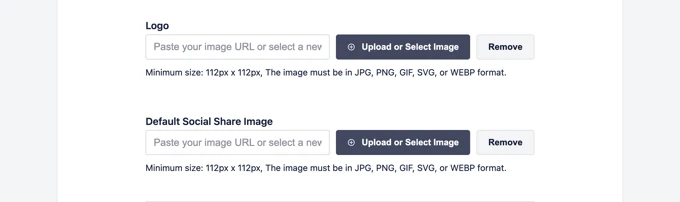
Below, you’ll upload a business logo and choose a default social sharing image.
This default image will be used as your digital business card image whenever someone shares a link from your website. It’s very useful if the page doesn’t have a specific featured image set for it.
AIOSEO Wizard – Add a Logo and Social Image
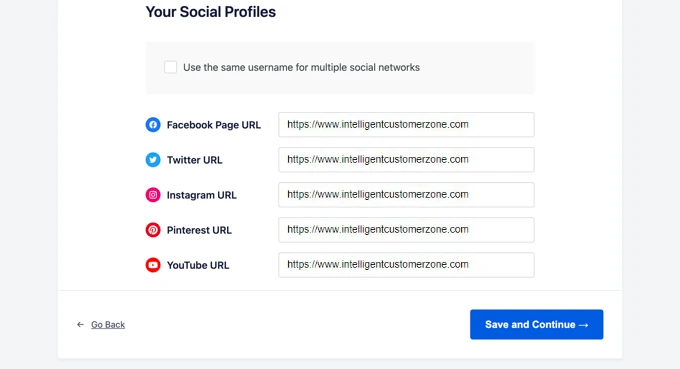
Scrolling down, you’ll find the social profile section. Here, you can input the URLs of your website’s associated social profiles.
Both the business logo and social profiles play crucial roles in Google and other search engines’ Knowledge Panels.
Pro TIP: social media are used by Google to distinguish the credibility of your Blog, so try providing at least one social media account.
AIOSEO Social Media Profiles
After filling out all available fields, simply hit the ‘Save and Continue’ button to proceed.
In the following step, you’ll be prompted to activate SEO features. Essential features like XML Sitemaps and Optimized Search Appearance are already enabled, and you can choose to activate other features as well.
Pro TIP: Most of the options are available only in the paid version – AIOSEO Pro. I will tell you that I can’t stop using AIOSEO Pro because, together with the Surfer SEO plugin, it improves my work and automates it. It’s an amazing time saver.
AIOSEO Wizard Which SEO Features to choose
If you’re uncertain, you can stick with the default options and proceed to the next step.
On the Optimized Search Appearance screen, the plugin provides a snippet preview. This helps you to see how your site will appear in search results. You can click on it to modify the homepage title and meta description.
All in One SEO wizard – Search Appearance
The plugin will automatically use smart tags for your site title, separator, and site tagline. If you want to customize these, then click ‘Google Snippet Preview.’
Strive to incorporate your primary keywords into the site’s title and meta description. Next, follow the Advanced options below for further configuration according to your preferences.
Pro TIP: If you are the only author of the content, select “No” in “Do you have multiple authors?”. This will prevent content duplication.
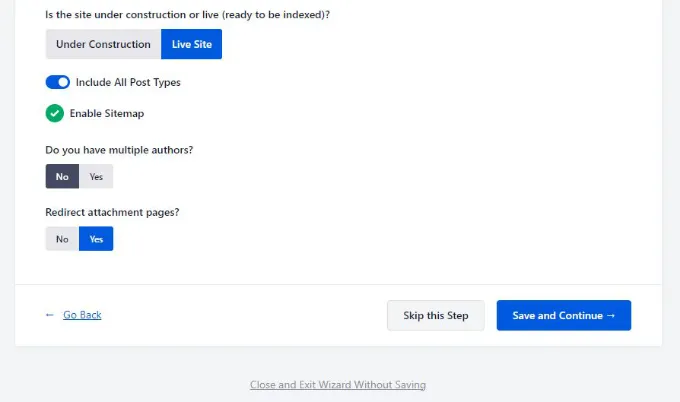
AIOSEO Wizard advanced site search appearance options
The initial choice is to decide if your site is live or under construction. Opt for ‘Under Construction’ if you don’t want search engines to index your website immediately.
Pro TIP: You can start from one page and grow your blog gradually, which is a better option for search engines. Sometimes, if you upload a vast number of posts, Google might recognize it as spam, and it will take longer to get indexed. Nevertheless, you decide which is better for you.
The following decision involves including all post types (e.g., posts, pages, and products) in search results. Keep it enabled for all post types if you’re uncertain.
Then, specify whether you have a multi-author or single-author blog.
Pro TIP: Choose ‘single-author’ for a WordPress blog to prevent duplicate content.
The redirect attachment pages option is enabled by default. Redirecting these low-text pages is recommended for an improved overall SEO score.
Click ‘Save and Continue’ to proceed to the next step.
If you’re using the PRO features, you’ll need to enter your license key, which is available in your account on the All in One SEO for WordPress website.
Enter your AIOSEO license key
Once you’ve input your license key, you’ll reach the Congratulations page, indicating the final stage of the All in One SEO setup wizard.
Save your settings by clicking on the ‘Finish Setup’ button to conclude the wizard.
Finish All in One SEO Setup Wizard
Kudos! You’ve effectively installed and configured the All in One SEO for WordPress plugin on your site.
So, after setting up AIO SEO, what crucial SEO features do you need to enhance your website’s growth in a short time?
Optimize Your Website Posts and Pages for SEO Using AIOSEO to Rank High in SERP
Ensuring your blog posts are SEO-friendly is an ongoing and crucial aspect of content creation. Utilizing All in One SEO for WordPress provides a TruSEO score for every post and page, offering actionable tips to enhance the score and optimize content for improved search result performance. To access these settings, edit the desired post or page and navigate to the ‘AIOSEO Settings’ section beneath the content editor.
Pro TIP: The Internet is huge, and there are thousands, if not millions ways of doing things. Therefore, use TruSEO as a part of the growth hack that I will show you in a moment, but don’t forget that SEO is an ongoing process.
Check the scores and occasionally add some content, rewrite part or the whole post. It’s worth it only if you follow the trend and your target avatar.
AIOSEO settings section for a single post or page
Here, you’ll find a preview of how your specific post or page will display in search results. Below, you can input the SEO meta title and meta description.
Add Page Post or Product Metadata in AIOSEO
AIOSEO offers the option to auto-generate the SEO title and meta description, or you can enter it for each article manually. This manual input provides the flexibility to craft engaging meta descriptions creatively.
Ensure that your title and description fields incorporate the main focus keyphrase for your post or page. The focus keyphrase represents the primary keyword or phrase targeted to align with user search queries seeking information found in your article.
Focus keyphrase keyword
Incorporating the focus keyphrase alone won’t enhance your SEO automatically. All in One SEO aids in optimizing your content for the focus keyphrase through its content analysis feature, which I will describe shortly.
Following this, navigate to the ‘Social’ tab within the AIOSEO settings. Here, you can manage how this particular post or page will be presented on social media platforms, offering previews for Facebook and Twitter.
AIOSEO Social Media Card
At this point, you have the option to select an alternative title and description variation. Additionally, you can designate the preferred image for link sharing, preventing any issues with broken social media images and ensuring the ideal image accompanies your links. I will cover the ‘Schema’ tab later in this article.
Now it’s time to analyze your score!
Leveraging the Content Analyzer for TruSEO Score in WordPress
One notable attribute of All in One SEO is the inclusion of content analysis and TruSEO score, conveniently positioned at the bottom of the AIOSEO Settings section. Alternatively, you can access these features by clicking on the AIOSEO button located in the top-right corner of the screen. The buttons with score values represent the Headline and Content analysis.
AIOSEO – TruSEO score and content analysis
The content analysis feature in AIOSEO meticulously examines a comprehensive set of indicators, providing your content with a valuable SEO score. This feature transforms into a convenient SEO checklist, guiding you through the content creation process.
Pro TIP: If you are just starting with your blog or website, you can make the content perfect from a very beginning. In case you already have some content and want to improve index rankings, then SEO scores are like a roadmap.
I check the list and go one by one to improve the content. This approach gives Google a signal that the website is constantly evolving and will favor your blog even to check responses from the readers. So, if your target avatar will consume your content by staying on the page for a longer time, then your pages will soar day by day.
By creating the content, focus on the value you provide to the reader – not the search engine bots.
By expanding specific sections, you gain access to detailed checks and recommendations. AIOSEO not only highlights areas requiring attention but also offers insightful details on each recommendation, along with clear instructions on how to address them.
Recommendations in AIOSEO – Basic Title Readability
Take your blog post optimization to the next level with the dynamic capabilities of Surfer SEO. I recommend efficient optimizations of your blog posts for SEO by incorporating automation tools such as Surfer SEO.
Unleash the potential of its comprehensive features to elevate your SEO strategy and achieve optimal results.
Maximize Clicks with SEO-Optimized Titles: Leverage All in One SEO’s Headline Analyzer
Improve your SEO game by optimizing your post titles with All in One SEO’s Headline Analyzer. You can do it directly in the post/page (Option 1) or go to Headline Analyzer dedicated page (Option 2). Press the ‘H’ button in the content editor to craft compelling headlines that attract more clicks on search engine results pages.
Headline Analyzer
After receiving your title score, explore various sections offering insights into enhancing your headline. Uncover tips on word balance, sentiment, headline type, character count, and word count. Expand each section to access actionable recommendations for refining your post’s SEO title.
AIOSEO SEO Headline Analyzer Recommendations
For headline inspiration, visit All in One SEO » SEO Analysis and navigate to the ‘Headline Analyzer’ tab for effective brainstorming.
AIOSEO Headline Analyzer
Type your headline and hit ‘Analyze’ on All in One SEO’s Headline Analyzer. Receive a score and actionable tips for instant headline enhancement.
AIOSEO Headline Analyzer Results
Elevate WooCommerce SEO with All in One SEO for WordPress
Effortlessly enhance your WooCommerce SEO with All in One SEO for WordPress. AIOSEO tailored for eCommerce will streamline optimization for product pages.
Therefore, begin by editing a WooCommerce SEO for product. Navigate to the AIOSEO Settings box below the product editor.
Add Product Metadata in AIOSEO
Explore the ‘General’ tab to customize the SEO title and description of your product. Utilize smart tags or craft a unique description, ensuring your main product keyword dominates both fields.
Navigate to the ‘Social’ tab to dictate your product’s appearance on social media. Enhance engagement by selecting a distinct product image, boosting clicks and interactions.
AIOSEO Social Media Card
Transition to the ‘Schema’ tab for enhanced search result presentation.
Schema markup empowers search engines with properly formatted content for machines and algorithms. Markup code helps display your content effectively. Visualize optimized product displays in search results through the strategic application of schema markup.
Now, it’s hassle-free schema implementation thanks to AIOSEO. SEO Plugin automatically identifies and applies the appropriate schema type.
Utilizing data from your WooCommerce product listings, including pricing and stock availability, ensures accurate and comprehensive schema representation.
AIOSEO Product Schema Markup
Explore further customization by clicking the ‘Edit Schema‘ icon. Add valuable details such as brand, identifier type, material, color, pattern, and more.
Pro TIP: make it as extensive as possible, because this will help you rank high in SERP.
Tailor your schema markup for a comprehensive and nuanced representation of your product or classified.
Edit product schema in All in One SEO
AIOSEO automatically creates WooCommerce XML sitemaps, encompassing both products and product categories.
So, now it’s time to transition seamlessly to the next stage of optimization.
Harnessing XML Sitemaps with All in One SEO
An XML sitemap is a crucial file as it meticulously catalogs all your website content and presents in a format understood by search engines, such as Google. This aids search engines in effortlessly discovering and indexing your content, playing a pivotal role in enhancing your SEO strategy.
AIOSEO simplifies this process by automatically configuring and setting up XML sitemaps for you. Easily locate your XML sitemap by appending “/sitemap.xml” to your domain name, like so:
Customizing your sitemap is a breeze with All in One SEO. Just navigate to the “All in One SEO » Sitemaps” page to explore and adjust your sitemap settings.
Sitemap settings in All in One SEO
Navigate to the Sitemap Settings section below by scrolling down.
Here, you have the flexibility to control sitemap indexes, decide on the inclusion or exclusion of post types and taxonomies (categories and tags).
Additionally, you can activate XML sitemaps for both date-based archives and author archives.
AIOSEO Sitemap settings
With the plugin, you have the option to manually incorporate pages into your XML sitemaps.
This feature proves useful for standalone components like contact forms, dedicated landing pages, or specific store pages that you may want to ensure are included in your sitemaps for search engine discovery.
Sitemap Additional Pages
SEO Traffic Growth Hack Using Power of Video Sitemaps
A Video XML Sitemap is a strategic asset for anyone seeking a traffic “grow hack” that will increase organic traffic. This XML roadmap, when leveraged effectively, offers unparalleled benefits in the ever-competitive world of search engine rankings.
Therefore, if you find long-tail keywords that have a high potential, your video will be the only one listed on the Search Engine Results Page (SERP). Images and especially videos have a high click-through rate (CTR).
So, if your video is the only one listed among regular text links, you have a high probability of attracting organic traffic.
Video SEO Sitemap Grow Hack Has a High Impact On Indexing Videos in SERP
When your videos are seamlessly indexed through a Video Sitemap, it works immediately as a traffic growth hack. Google’s algorithms favor well-organized, easily accessible information.
By encapsulating video content in a structured sitemap, you’re providing Google with a clear path to understand and showcase your visual assets.
Traffic Growth Hack Benefits through Video in SERP
Enhanced Visibility: Videos featured in SERPs grab attention instantly, standing out amidst the text-heavy landscape.
Rich Snippets: Video-rich snippets in SERPs not only entice users with visual content but also convey a sense of credibility and expertise.
Increased Click-Through Rates (CTR): Engaging visuals in search results act as a growth hack – a real magnet, drawing users to click and explore your content further.
Extended Reach: Videos broaden your audience reach. Appearing in Google’s video carousels exposes your content to a wider spectrum of users.
User Engagement: Visuals resonate with users. Having video snippets in SERPs provides a glimpse of your content, encouraging users to engage and delve deeper into your offerings.
Growth Hack with All in One SEO Video XML Sitemap
To harness the full potential of video indexing and achieve traffic “grow hack” success, consider integrating All-in-One SEO XML sitemaps for Video.
This powerful WordPress plugin simplifies the process, ensuring your videos not only rank but also stand out in the ever-evolving search engine. So, use AIOSEO to elevate your on-page SEO and watch your online presence flourish.
Expanding Growth Hack to YouTube
It’s crucial to grasp the advantages of uploading videos to your YouTube channel as part of your traffic growth hack strategy. By attracting viewers on YouTube, you enhance your page’s visibility.
This, in turn, signals Google algorithms to potentially rank your page higher due to its compelling content. The link from your YouTube video and the time users spend on the page contribute significantly to this effect.
Be sure to include a link to your site directly from the YouTube video for optimal results.
Use AIOSEO to Generate Video XML Sitemap
With All in One SEO, you have the capability to generate various sitemaps, including a video XML sitemap or a news XML sitemap.
By incorporating a sitemap for videos, your embedded videos within the content will showcase a video thumbnail with a play button directly in search results. This enhances the visual appeal and engagement potential of your content in search engine listings.
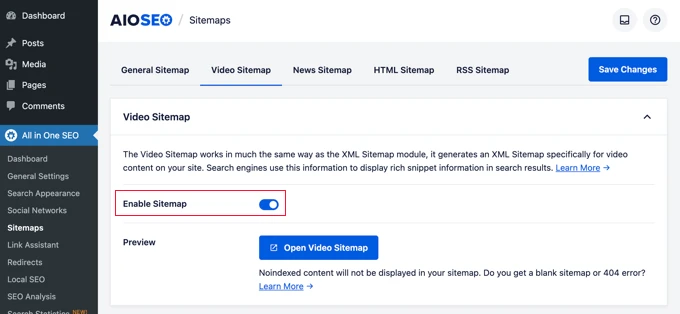
To enable the video XML sitemap in All in One SEO, navigate to the ‘Video Sitemap‘ tab.
Upon your initial visit to this page, simply click the ‘Activate Video Sitemap‘ button to initiate the incorporation of video sitemaps on your website. This ensures your videos are efficiently indexed and presented in search results.
Video Sitemap
After you activate video sitemaps, access the ‘Video Sitemap’ settings tab.
Observe that the ‘Enable Sitemap’ toggle has been turned on, indicating successful activation of video sitemaps for your content.
Enable Video Sitemap
Pro Tip: If you want to implement this growth hack, you will need access to the video sitemaps feature, which requires a minimum of the PRO plan for the plugin. You can try it for free and decide if you need it.
Generate a News Sitemap in WordPress
If you operate a news website, it’s crucial to create a news XML sitemap for visibility on Google Search’s News results page.
Pro TIP: You can create an automated News website to get instant ranking in Google analytics. If you can generate news, then search engines will promote your website instantly because that’s what people consume the most.
All-in-One SEO simplifies the process of generating a news sitemap for your site. Just navigate to the News Sitemap tab. When you access this tab for the first time, click the Activate News Sitemap button. This will enable news sitemaps on your site.
Activate News Sitemap
Now, navigate to the Video Sitemap settings tab.
Observe that the Enable Sitemap toggle has been activated.
Enable News Sitemap
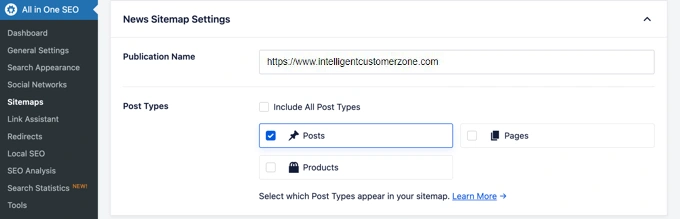
Underneath, locate the settings for the news sitemap.
Configure your publication name and choose a post type for the news sitemap.
News Sitemap Settings
Pro TIP: To unlock the video sitemaps feature, a PRO plan of the plugin is required.
Create an RSS Sitemap
Distinguishable from XML sitemaps, an RSS Sitemap focuses solely on your latest content. It aids search engines like Google in displaying your most recent posts in search results.
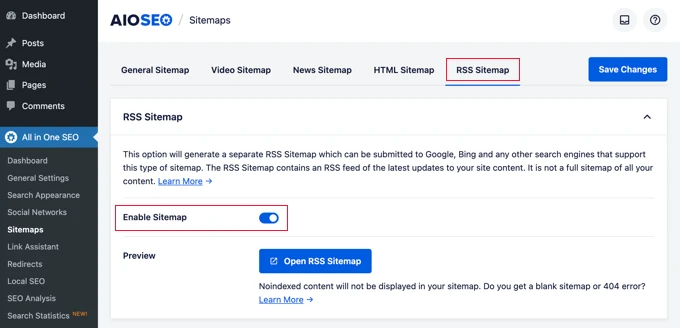
All in One SEO facilitates the addition of an RSS sitemap to your site. Navigate to the ‘RSS Sitemap’ tab and ensure the ‘Enable Sitemap’ option is activated to seamlessly include this feature on your website.
RSS Sitemap
Use SEO Schema Markup with All in One SEO for WordPress to increase SERP position
Schema markup is a special vocabulary that helps making content machine readable. You can include Schema markups in the HTML code of your posts or pages to provide additional information to search engines about your content.
For example, you can specify to search engines that the content pertains to a recipe, classified, or product page. This utilization of microdata enables search engines to present rich snippets in their search results.
SEO Schema markup not only aids search engines in presenting results in knowledge graph information panels but also contributes to improved placement in search results, ultimately attracting more clicks and visitors to your website.
All in One SEO for WordPress seamlessly integrates schema markup support for all your content.
Optimize SEO code Markup in WordPress for traffic growth hack
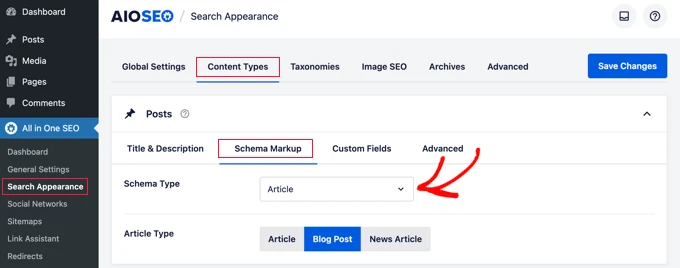
Begin by navigating to the All in One SEO » Search Appearance page and selecting the ‘Content Types’ tab.
Within this section, access the ‘Schema Markup’ tab for each content type.
Sitewide Schema Markup
Customize schema markup to enhance the specificity of your content for search engines. For example, you can designate ‘Article’ for your posts and further refine the type, such as articles, blog posts, or news articles.
Likewise, for WooCommerce products schema, go to the ‘Schema Markup’ tab. Next set the default markup type as ‘Product’.
Adapt Schema Markup for Individual Posts and Pages
If your content includes diverse types, like publishing a classified or recipe as a blog post, All in One SEO empowers you to manage schema markup for each post, page, item, or product.
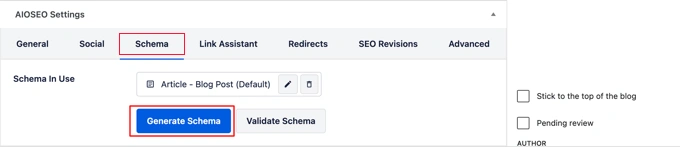
Simply edit the item, scroll down to AIOSEO Settings beneath the post editor, switch to the ‘Schema’ tab, and click ‘Generate Schema’.
Change a single post or pages schema markup
Open the Schema Catalog to select the schema type that aligns with your content.
Schema Generator
Choose a schema type, like ‘Recipe,’ and fill in specific details such as recipe name, description, image, dish type, cuisine, time required, and more.
Recipe Schema
Utilize schema markup, which will significantly enhance your content’s presentation in search results and drive increased organic traffic to your website.
Google Search Console Integration and Other Webmaster Tools using AIOSEO
Google Search Console with Google Analytics, a complimentary tools from Google, aids website owners in monitoring their site’s visibility in Google search results.
To seamlessly link your WordPress site with Google Search Console using All in One SEO for WordPress, follow these steps.
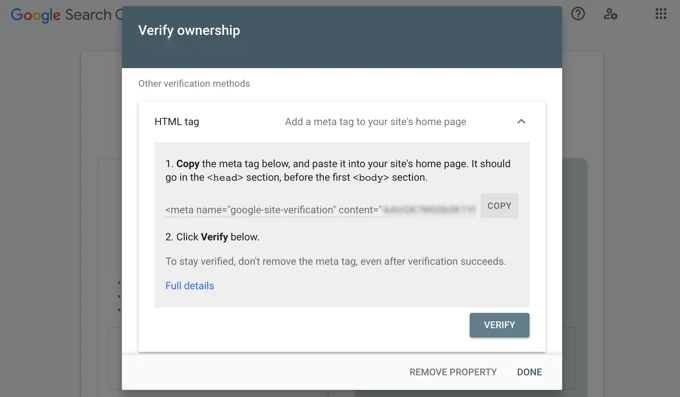
First, add your website to Google Search Console through the URL prefix method, selecting the HTML tag option during verification.
Google Search Console
After obtaining the HTML tag from Google Search Console, return to your WordPress admin area.
Navigate to the All in One SEO » General Settings page and access the ‘Webmaster Tools’ tab.
Click on ‘Google Search Console’ and input the verification code acquired earlier in the provided field.
Google Search Console Verification Code
The plugin provides the option to include verification codes for multiple webmaster tools, including Bing Webmaster Tools, Yandex, Baidu, and Pinterest.
Therefore, if any third-party service requests code integration into your site’s header, utilize the ‘Miscellaneous Verification’ box on this page to add the necessary codes.
Google Search Console Miscellaneous Verification section in All in One SEO
Ensure to click the ‘Save Changes’ button to preserve your configuration.
Access Google Search Console Statistics with All in One SEO
If you’re struggling to locate specific information on the Google Search Console website, All in One SEO simplifies the process by providing easy access to essential statistics directly from your WordPress dashboard.
To start, visit the All in One SEO » Search Statistics page and click the ‘Connect to Google Search Console’ button.
Connect to Google Search Console
Connect your Google account by selecting it and granting All in One SEO access to your Google Search Console account.
After you redirect to your website, the plugin will fetch your Google Search Console data, presenting it in user-friendly reports with informative graphs.
AIOSEO Search Statistics
Utilize AIOSEO Link Assistant for Internal Linking Posts and Pages
🔎 Want to browse the web privately? 🌎 Or appear as if you're in another country?
Simplify internal linking by using All in One SEO’s Link Assistant feature. Navigate to All in One SEO » Link Assistant within your WordPress dashboard, allowing you to effortlessly add internal links to both old and new content without the need to open individual posts.
AIOSEO Activate Link Assistant
Upon your initial visit to this page, click on the ‘Activate Link Assistant’ button. This will enable very helpful Link Assistant feature on your website.
After you activate Link Assistant, AIOSEO will scan every post and page to compile existing links, providing insights into linked and unlinked posts.
Scanning Your Website Links Using Link Assistant
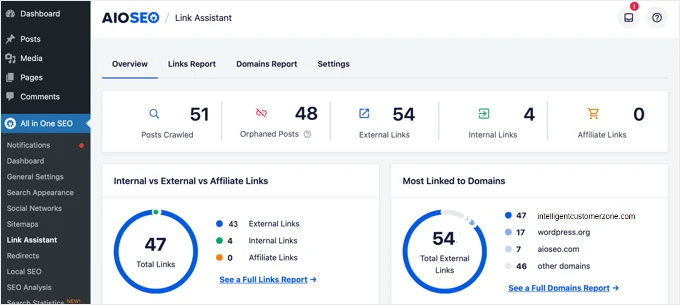
Upon completion of the scan, a summary of your website’s links will be displayed. This includes total counts for all internal links, external, and affiliate links.
Pro TIP: For good tracking of affiliate links I recommend you use the BetterLinks WordPress plugin. This plugin will help you manage your links throughout the complete blog and present click statistics.
Additionally, the report highlights the number of orphaned posts, which have not been linked to from another post or page.
AIOSEO Link Assistant Overview
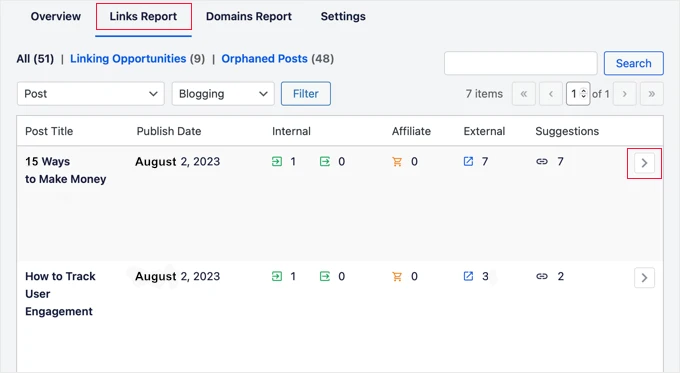
Navigate to the ‘Links Report’ tab to access comprehensive details about your links. This section presents a list of your posts and pages, featuring columns for internal, external, and affiliate links.
Additionally, the report offers suggestions on where you can incorporate links.
AIOSEO Link Assistant Links Report
To access more information about any post or page, click on the right arrow button next to it. For instance, you can navigate to the ‘Link Suggestions’ tab to swiftly review link suggestions and include links without directly editing a post or page.
Viewing Link Suggestions Offered by AIOSEOs Link Assistant
Setup SEO plugin for Your Local Business SEO as an online Growth Hack
Many WordPress users operate websites for small businesses catering to specific towns or regions. This includes businesses such as restaurants, small stores, salons, real estate agents, real estate renovation services, plumbing services, attorneys, insurance companies, maintenance providers, and more.
Pro TIP: It’s crucial for you to rank as #1 in your location. Whenever someone searches for products or services you offer and they use the town name, then you must be the first.
Local business SEO is crucial for your website to appear in local search results.
For example, when someone searches for an ‘Italian restaurant,’ your location would be prioritized in the Google search results.
AIOSEO for Local Business Google Business Profile
This will enhance targeted customers and sales in your brick-and-mortar location.
First, consider creating a Google Business Profile account, previously known as Google My Business. This account enables you to add your business listing, verify ownership, and manage your business information efficiently through Google’s Business Profile dashboard.
Google Business Profile
Use All in One SEO to simplify the process of adding your local business SEO schema markup to your WordPress website. This feature is vital for keeping your business information up to date and ensuring enhanced placement in search results.
To get started, go to All in One SEO » Local SEO. After installation of this SEO plugin, click the ‘Activate Local SEO’ button to enable local SEO on your site.
Activate Local SEO in AIOSEO
Now, setup your location details. First, determine if your business has multiple locations.
Next, choose your preferred method for adding location information to your website. While many users opt for Gutenberg blocks, alternatives include shortcodes, widgets, or PHP code.
Pro TIP: I recommend the use of the DIVI Theme because it’s extremely easy to use and intuitive for most users. We offer it for free with thousands of design templates to start a blog or any business type website.
I recommend DIVI for beginners and advanced users because it’s extremely easy and fast. You can instantly modify the content or design, focusing on more important aspects of your business or website. You can see here how easy it is to use DIVI builder.
AIOSEO Local SEO Location Settings
Here you can provide essential business details in All in One SEO.
Scroll down to the Business Info section to input pertinent information such as your business name, logo, location, and the areas you serve.
Local SEO settings in AIOSEO
After entering your business information, proceed to set your opening hours in the Opening Hours tab.
Configure the settings based on your preferences, including whether to display business hours and the method of adding them to your site, such as utilizing a Gutenberg block or DIVI Theme builder, as I mentioned previously.
Continue by scrolling down the page and input your business hours.
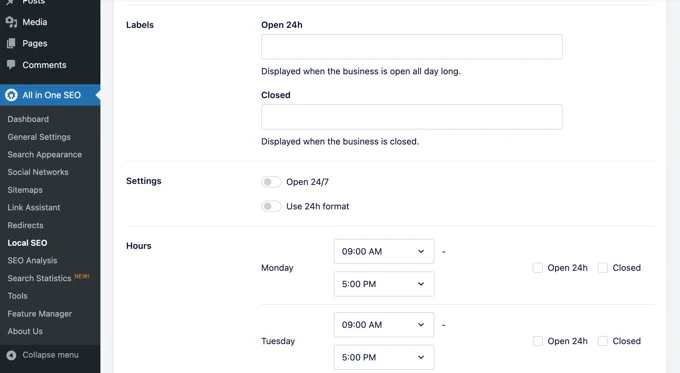
You have options to select if your business is open 24/7, or operates on a specific schedule. Plugin gives you a chance to enter the opening hours for each day of the week.
AIOSEO Local SEO Opening Hours Settings
In the final tab, you can seamlessly integrate a map displaying your business location on your website. This feature aids customers in easily finding their way to your office or store.
Pro TIP: Traffic Growth Hack #2 – Google Maps are a Must For Local Businesses
I can’t even emphasize enough how important for your local business is to be visible on Google Maps. Whenever someone types the phrase “near me”, it triggers Google to search for businesses close to his location.
It is crucial for you to be right there and have a well-established Google Business Profile. If you would like to know what your business looks like, you can request a free professional Google Business Profile report.
AIOSEO Local SEO Maps
Don’t forget to store your settings by clicking on the ‘Save Changes’ button.
Conducting a Website SEO Audit directly in your WordPress dashboard
As you enhance your website, it’s essential to gauge your SEO performance. All in One SEO for WordPress offers an integrated tool for keyword rankings and conducting a comprehensive SEO audit.
Navigate to the All in One SEO » SEO Analysis page to initiate a thorough site-wide SEO analysis.
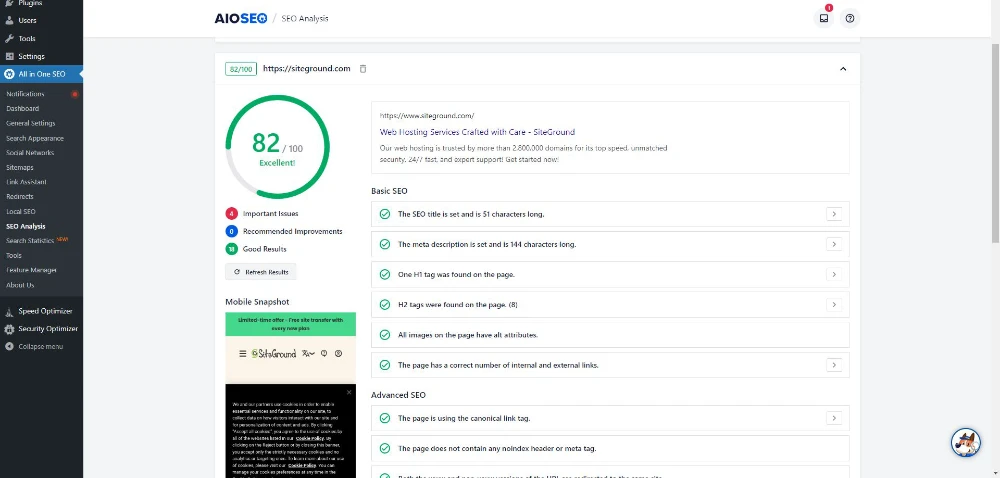
SEO analysis performed by AIOSEO
At the top of the page, you’ll receive an overall score indicating your site’s SEO health. A score above 70 is considered acceptable, though there’s always room for improvement.
Beneath the score, you’ll find a detailed breakdown of your site’s SEO audit report, categorized with different labels.
SEO audit report in AIOSEO
In the case of critical issues demanding immediate attention, navigate to the ‘Important Issues’ tab. Here, you’ll find a list of items requiring fixes.
You can click on the arrow next to each item to expand and receive guidance on resolving the issue.
Fixing important SEO issues
After fixing an issue, press the ‘Refresh Results’ button to regenerate the SEO Analysis score.
Conduct Competitor Site SEO Analysis
To compare your SEO performance with competitors, utilize AIOSEO’s built-in competitor analysis tool. To do so, you must open ‘All in One SEO » SEO Analysis’ page and access the ‘Analyze Competitor Site’ tab.
There you can input your competitor’s website URL to generate a comprehensive analysis report. This will help you understand how your website looks compared to the competition.
Competitor analysis in AIOSEO for WordPress
Plugin will produce a detailed SEO analysis report for your competitor. Beneath the overall score, you’ll receive in-depth information on various SEO assessments, primary keywords, crucial issues, performance, and security analysis.
Competition SEO analysis report
Compare this report with your own to identify potential areas for improvement. Additionally, you can utilize the All in One SEO Analyzer browser extension for a swift glance at a website’s SEO scores on the front end.
Pro TIP: For extreme improvements in your SEO analysis, I recommend using Surfer SEO which can increase your SERP position.
Use Advanced SEO Features and Tools To Grow Your Free Traffic
In addition to the previously discussed features, All in One SEO for WordPress offers a range of advanced tools tailored for seasoned users.
Automate Transition from Yoast SEO to All in One SEO
Easily transfer SEO data from third-party SEO plugins like Yoast SEO by navigating to All in One SEO » Tools » Import/Export.
Pro TIP: I moved to this plugin because I checked a couple of them and used Yoast SEO for some time. Whenever I installed the All in One SEO plugin, I found it to be way easier and more intuitive to use.
Therefore, within the first trial week, I discovered that it is the best WordPress SEO plugin for me.
Why I switched from Yoast SEO? Answer: User interface was less user-friendly for me. I simply don’t have time to waste on working with tools. They should be seamless in supporting my work. Go to this LINK to try it and see by yourself if it works for you the same as for me.
Import export your WordPress SEO data and settings
Select a plugin from the dropdown list and click the ‘Import’ button to seamlessly bring in the desired data.
Edit Robots.txt and .htaccess Files
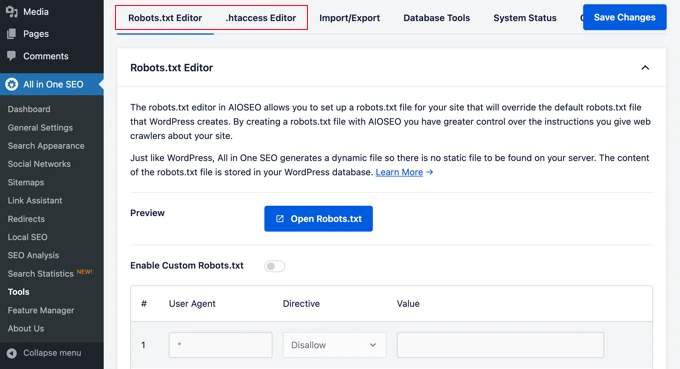
If you ever need to edit your robots.txt or .htaccess file, the best WordPress SEO plugin makes the process easy.
To edit these files:
Navigate to the All in One SEO » Tools page.
Look for the option to edit the robots.txt and .htaccess files.
Make the necessary changes with confidence, knowing you can manage these essential files effortlessly whenever you need to.
Robotstxt and htaccess file editor in AIOSEO
Manipulate Your WordPress RSS Feeds
WordPress RSS feeds play a crucial role in displaying your site’s content on content aggregators. SEO plugin empowers you to customize these feeds according to your preferences, allowing you to add custom content before or after your blog posts.
Here’s how you can achieve this:
Go to the All in One SEO » General Settings page.
Navigate to the ‘RSS Content’ tab.
You can use RSS feeds as a traffic growth hack and enhance your content’s presentation across various platforms.
Add content before or after your WordPress RSS feed
Control Access to SEO Options in WordPress
In business scenarios where specific staff members handle content creation, marketing, or SEO management, you need a user-friendly solution to control access to SEO settings.
Follow these steps:
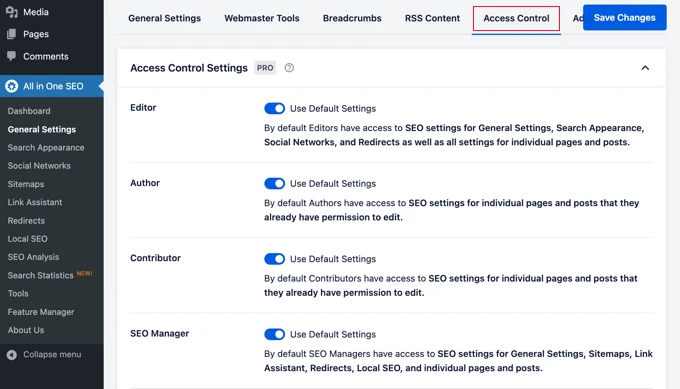
Navigate to the Access Control tab.
Toggle the different settings on and off based on your preferences.
Effortlessly manage and grant access to SEO options within WordPress using the Access Control feature.
AIOSEO Access Control
It works seamlessly with WordPress user roles and permissions
Elevate Your Website SEO Performance
After successfully installing and configuring All in One SEO plugin for WordPress, the subsequent focus is on monitoring your website’s performance and implementing growth hacks.
Track Website Traffic
For effortless website traffic tracking, consider integrating Google Tag Manager. By using GTM you can easily integrate many other tools to analyze the visitor numbers, page views, and user interactions on your site.
Nevertheless, I suggest Surfer SEO for your revenue enhancement for even 3000% in 60 days. Interested? Read our review of Surfer SEO with Surfer AI
Pro TIP: Enhance Your Marketing Strategy with Opt-In Plugin
While driving traffic is crucial, converting visitors into subscribers and customers is equally vital. You can meet your conversion goals with Bloom, the premier conversion optimization plugin:
Trigger Your Opt-In Forms Effectively with Bloom array of triggers
Timed Delay – Set a specific duration for pop-ups and fly-ins to trigger
Bottom of Post – Allow Bloom to automatically detect when readers reach the bottom of a post or page
After Scrolling – Display opt-in forms only after visitors scroll a predetermined percentage
After Commenting – Target engaged visitors after they’ve commented on a post or page
After Purchasing – Trigger an opt-in form immediately after the checkout process
After Inactivity – Recapture visitor attention by triggering a pop-up or fly-in
Seamlessly Integrate with Leading Email Marketing Platforms
Design and Customize with Ease of over 100 pre-made templates to kickstart
Advanced SEO Features: Upgrade to AIOSEO Pro for an extensive set of advanced SEO features, including content analysis, local SEO optimization, and video SEO capabilities, providing a comprehensive toolkit for enhancing your website’s visibility.
Unlimited Keyword Optimization: Optimize your content for an unlimited number of keywords, allowing you to target a broad range of terms related to your niche, improving relevance and search engine rankings.
Priority Customer Support: Gain access to priority customer support with the Pro version, ensuring prompt assistance for any queries or issues related to your SEO strategy or technical challenges.
Regular Updates and New Features: Stay ahead in the dynamic SEO landscape with regular updates and access to new features. AIOSEO Pro guarantees you have the latest tools and optimizations for maintaining and improving your website’s performance.
AIOSEO Pro is especially beneficial for local brick-and-mortar businesses
AIOSEO Pro is especially beneficial for local brick-and-mortar businesses. The local SEO optimization features help businesses establish a stronger online presence in their local communities, attracting nearby customers and driving foot traffic to physical locations.
AIOSEO PRO Try for free and check if it works for you
Frequently Asked Questions (FAQ) About All-In-One SEO Plugin
1. Why would I want to use All in One SEO if I'm already using SEO Yoast?
It depends on your preference and specific needs. Some users find AIOSEO more user-friendly or prefer its feature set. It’s a personal choice based on your experience and requirements.
2. Now that I'm using AIO SEO, what's the difference between a sitemap for news (for Google News) and a sitemap for posts?
The news sitemap includes content from the last 48 hours. It contains extra markup for Google News to trigger proper Google algorithms and speed up the indexing process. If you will create a news page you might rank in Google almost instantly. Nevertheless, use a google news sitemap ONLY if you have a news site.
3. Can I export all my SEO data (SEO meta description and SEO meta title) from Yoast to All-in-one-seo-pack?
Yes, you can use the AIOSEO Data Importer plugin for this as explained above in this tutorial.
4. Is there a way to update the sitemap so I can submit a new sitemap to Google Search Console?
The sitemap updates automatically as you add content, so there’s usually no need to resubmit it.
5. I'm getting a 500-page error and can't access WordPress to uninstall AIOSEO. Is there a way to uninstall without going through WordPress?
This error happened to me couple of times after updates. To fix it you must deactivate the plugin by changing the directory name. Login to your server admin panel, go to /wp-content/plugins/all-in-one-seo-pack-pro and change it to /wp-content/plugins/all-in-one-seo-pack-pro.DEACTIVATED. In case you would like to active it again, simply change it back to original directory name (delete DEACTIVATED).
6. I've been using Yoast for over 5 years, but your guides make me question my decision. Can I use AIOSEO for my new website?
Certainly! Read our thorough guide on how to install it and configure for your website.
7. Does the Social Meta automatically update Facebook, Twitter, and G+ accounts when I make a new post?
No, Social Meta is used only when someone shares a link to your site on their social profiles. It’s like a digital business card that helps platforms pick up details about your website like title, description, featured image, etc.
8. I filled in the snippet, updated the page, but the title does not appear in the browser title/tab. Any ideas?
Edit the page, scroll down to the AIOSEO settings, and check the title field to see how it appears on other search engines.
Make sure you clear all caches, on the server, CDN and your browser. In most cases this is the main reason why you can’t see the change.
9. Is it possible to set SEO Title, SEO Description, and SEO Keywords in bulk?
Currently, AIOSEO doesn’t have a built-in bulk editor for these fields.
Setup AIOSEO Guide Conclusion
In conclusion, installing and configuring the All in One SEO (AIOSEO) WordPress plugin is a pivotal step towards ensuring your website’s optimal performance in search engine results. By following the detailed steps outlined in this guide, you’ve empowered your site with advanced SEO capabilities that enhance visibility, attract organic traffic, and ultimately contribute to your online success.
AIOSEO’s user-friendly interface, coupled with its powerful features, makes it an indispensable tool for both beginners and seasoned website owners. From comprehensive content analysis to local SEO optimization and seamless integration with various webmaster tools, AIOSEO provides a holistic solution to elevate your website’s search engine ranking.
Remember to regularly update your SEO strategy to adapt to evolving search engine algorithms, and explore the additional features offered in the Pro version for even more advanced capabilities and personalized support. As your website continues to evolve, AIOSEO remains a valuable companion on your journey to SEO excellence.
By investing time and effort into understanding and implementing AIOSEO, you’ve taken a significant stride toward unlocking your website’s full potential in the digital landscape. Now, armed with a well-optimized website, you’re better positioned to reach your target audience, achieve higher rankings, and realize your online goals.
Learn how to get found on Google quickly with proven strategies for fast indexing, SEO optimization, and boosting your website's visibility effectively.
Master internal and external linking strategies to boost SEO, enhance user experience, and drive organic traffic with actionable tips and best practices.
Discover how AI keyword research revolutionizes SEO by saving time, improving accuracy, and uncovering hidden opportunities. Learn to stay ahead in SEO.
Discover the evolving landscape of AI SEO and learn how to optimize content for AI-driven search engines. Master strategies to stay ahead in digital marketing.
Discover the art and science of prompt engineering to guide AI systems effectively. Learn techniques, best practices, and strategies to optimize AI outputs.
Discover cutting-edge off-page SEO strategies for 2025, leveraging AI to build authority, drive organic traffic, and stay ahead in the digital landscape.
Learn how to start affiliate marketing, a low-cost way to earn online income. Discover strategies, tools, and tips to succeed in this growing industry.
Learn how to start a blog with this comprehensive guide. Discover the best platforms, hosting options, and strategies to build a successful blog today.
our free latest market news and updates, new reviews, projects, products, and special offers.
Thank you for subscribing to our newsletter.
Check your inbox because you will receive an email from ICZ with a link to confirm your subscription.
Then mark this message as important by checking an asterisk so that our emails do not end up in SPAM.
Thanks to this, you will help us maintain a high quality of services, and at the same time, you will not miss anything in the future.
THANK YOU!
Pin It on Pinterest
By continuing to browse or by clicking "Accept All Cookies" you agree to the storing of first and third-party cookies on your device to enhance site navigation, analyze site usage, and assist in our marketing efforts.
Read Our Cookie Policy
Cookie Settings
Accept All Cookies
Accept Only Required Cookies
By continuing to browse or by clicking "Accept All Cookies" you agree to the storing of first and third-party cookies on your device to enhance site navigation, analyze site usage, and assist in our marketing efforts.
Read Our Cookie Policy
Cookie Settings
Accept All Cookies
Accept Only Required Cookies
Cookie settings
Cookie settings
Cookie Settings
Privacy Overview
When you visit any website, it may store or retrieve information on your browser, mostly in the form of cookies. This information might be about you, your preferences, or your device and is mostly used to make the site work as you expect it to. The data stored in the cookies don't usually directly identify you. We use cookies and other tracking technologies to ensure that we give you the best experience on our website, analyze your use of our products and services, assist with our promotional and marketing efforts, and provide content from third parties. We respect your right to privacy, so you can choose not to allow some types of cookies. Click on the different category headings to find out more and change our default settings. Remember that blocking some types of cookies may impact your experience of the site and the services we offer. More info
These cookies are necessary for the website to function and cannot be switched off in our systems. They are usually only set in response to actions made by you which amount to a request for services, such as setting your privacy preferences, logging in, or filling in forms. You can set your browser to block or alert you about these cookies, but some parts of the site will not then work. These cookies do not store any personally identifiable information.
Cookies used:
CookieName1
CookieName2
CookieName3
Preferences Cookies
These cookies allow the provision of enhance functionality and personalization, such as videos, live chats and your preferred language. They may be set by us or by third party providers whose services we have added to our pages. If you do not allow these cookies, then some or all of these functionalities may not function properly.
Cookies used:
CookieName1
CookieName2
CookieName3
Analytics Cookies
These cookies allow us to count visits and traffic sources, so we can measure and improve the performance of our site. They help us know which pages are the most and least popular and see how visitors move around the site. All information these cookies collect is anonymous. If you do not allow these cookies, we will not know when you have visited our site.
Cookies used (Google Analytics Cookies):
_ga
_gat
_gid
_gat_gtag_UA_
Marketing Cookies
These cookies are set through our site by our advertising partners. They may be used by those companies to build a profile of your interests and show you relevant ads on other sites. If you do not allow these cookies, you will not experience our targeted advertising across different websites.
Cookies used:
CookieName1
CookieName2
CookieName3
Social Media Cookies
These cookies are necessary to display content from social networks such as facebook, twitter, pinterest, etc. In such a way that you can share our content with your favorite social networks.